

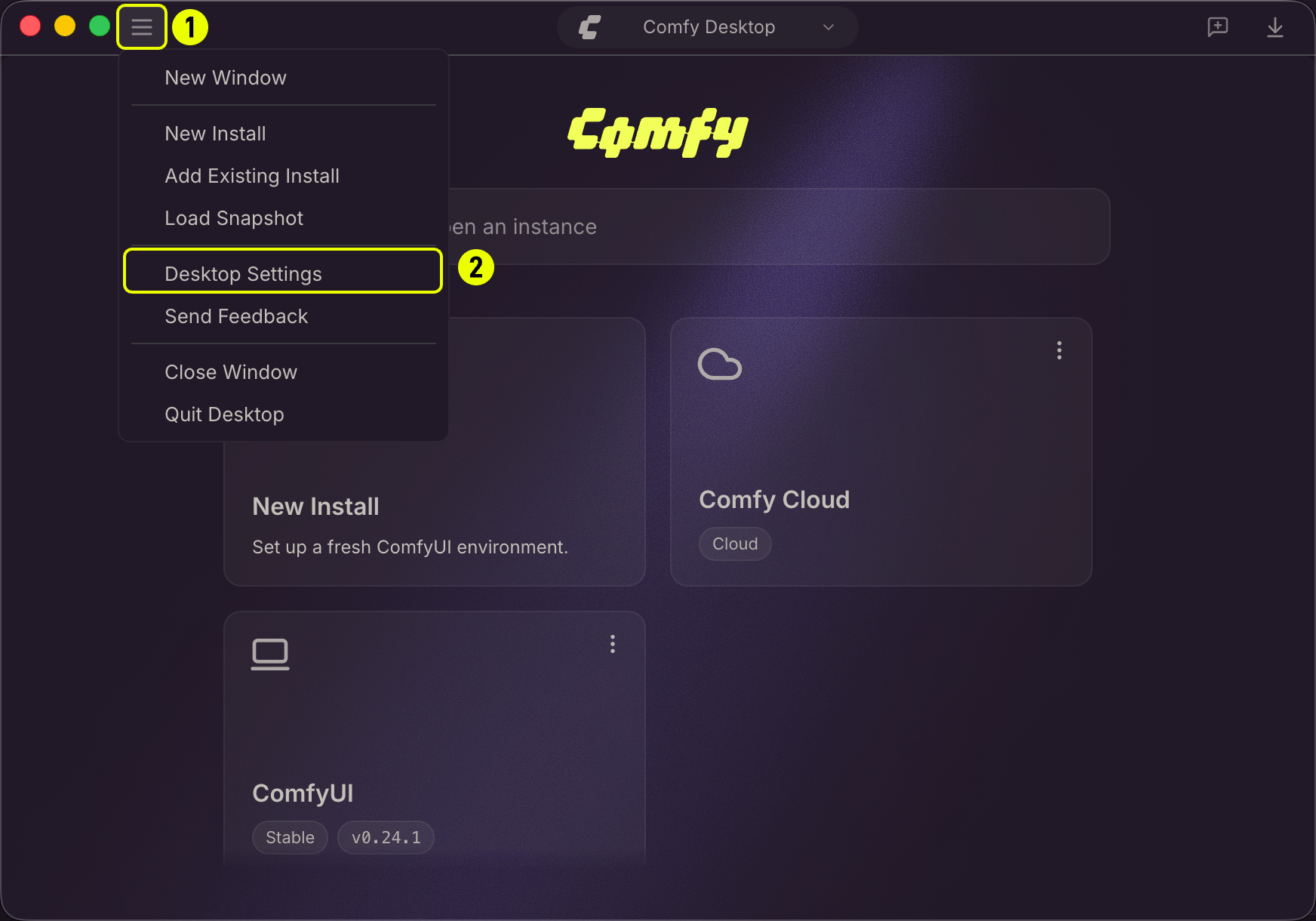
Preferences
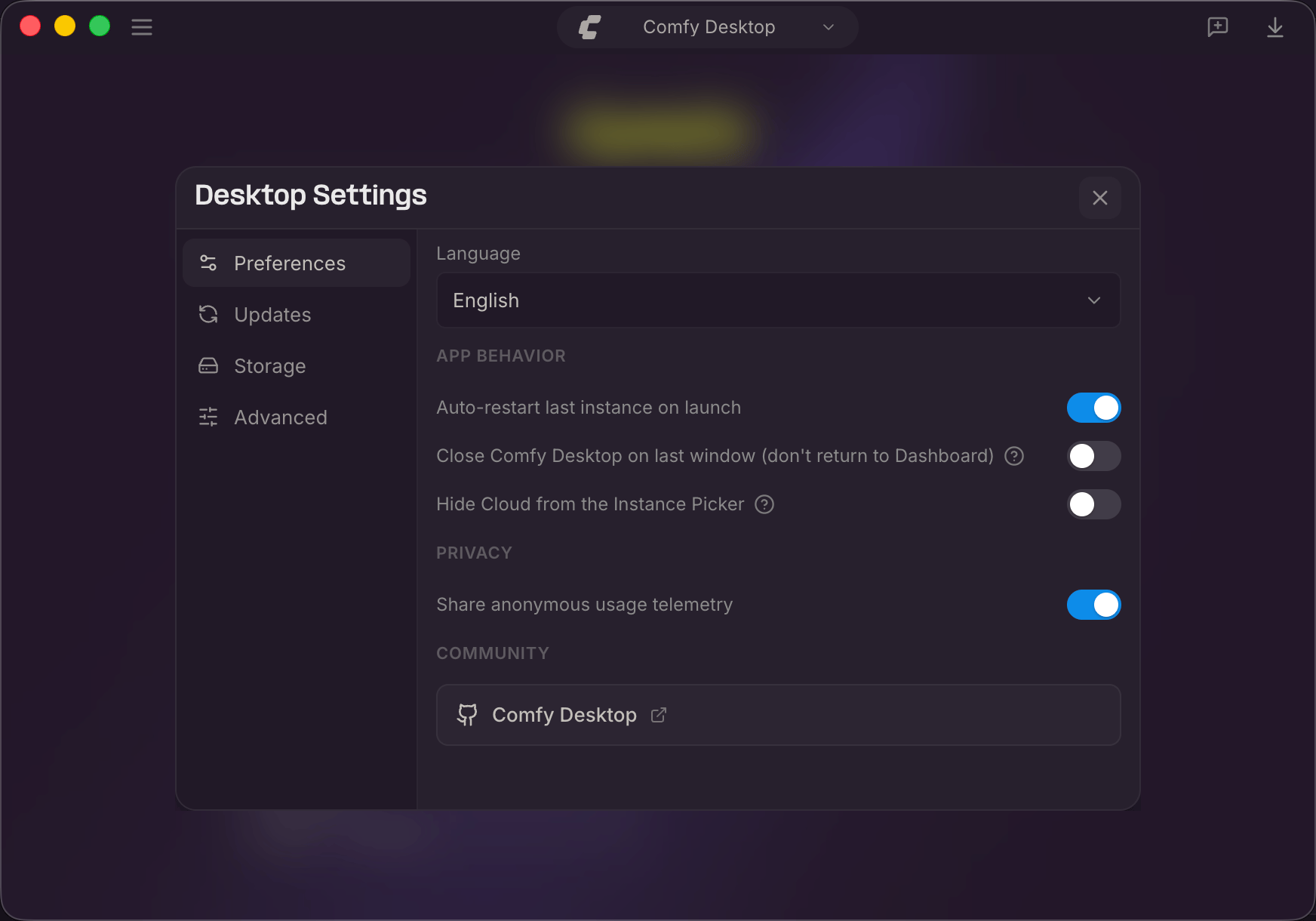
- Language: Choose the display language. English and 中文 are available.
- Auto-launch on startup: Pick which instance to start when Comfy Desktop opens. None (show dashboard) is the default. You can also choose Last used instance, or a specific install.
- Confirm before closing a window: Ask for confirmation before closing a window that is running a local install.
- Warn before running multiple instances: Show a warning before launching another local ComfyUI instance while one is already running or starting.
- Hide Cloud from the Instance Picker: Hide the Cloud row from the Dashboard. Cloud still works if you re-enable this later.
- Share anonymous usage telemetry: Send anonymous usage data to help improve Comfy Desktop.
- Comfy Desktop: Link to the Comfy Desktop GitHub repository.
Updates
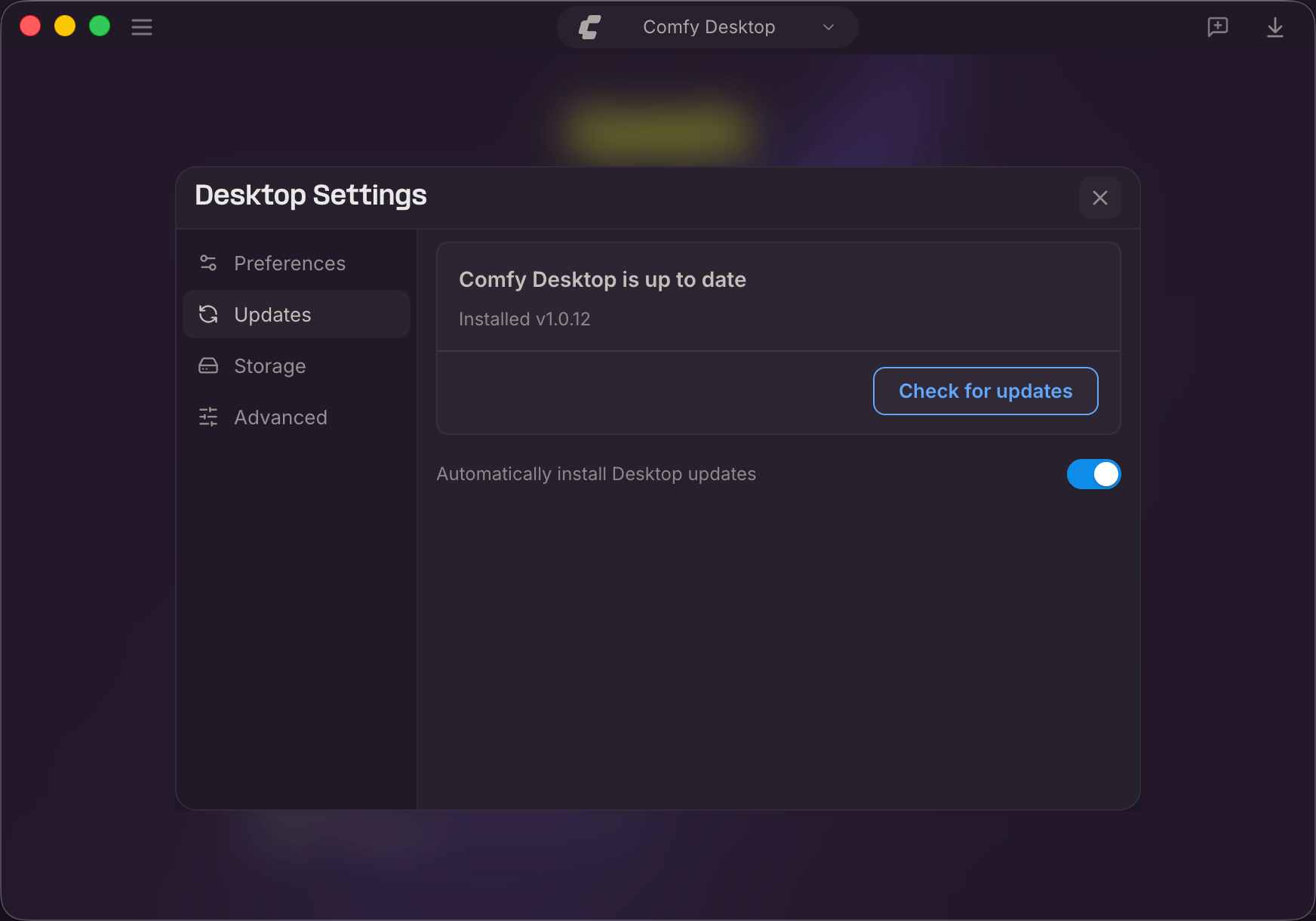
- Status: Shows whether Comfy Desktop is up to date, the installed version, and the last check time.
- Check for updates: Manually check for a new version. Button changes to Download then Install when an update is available.
- Automatically install Desktop updates: Auto-download and install updates in the background.
Storage
The Storage tab is where you configure where Comfy Desktop finds and stores files. The key concept is sharing: instead of each instance having its own isolated models, inputs, and outputs, you set up shared directories accessible to all instances.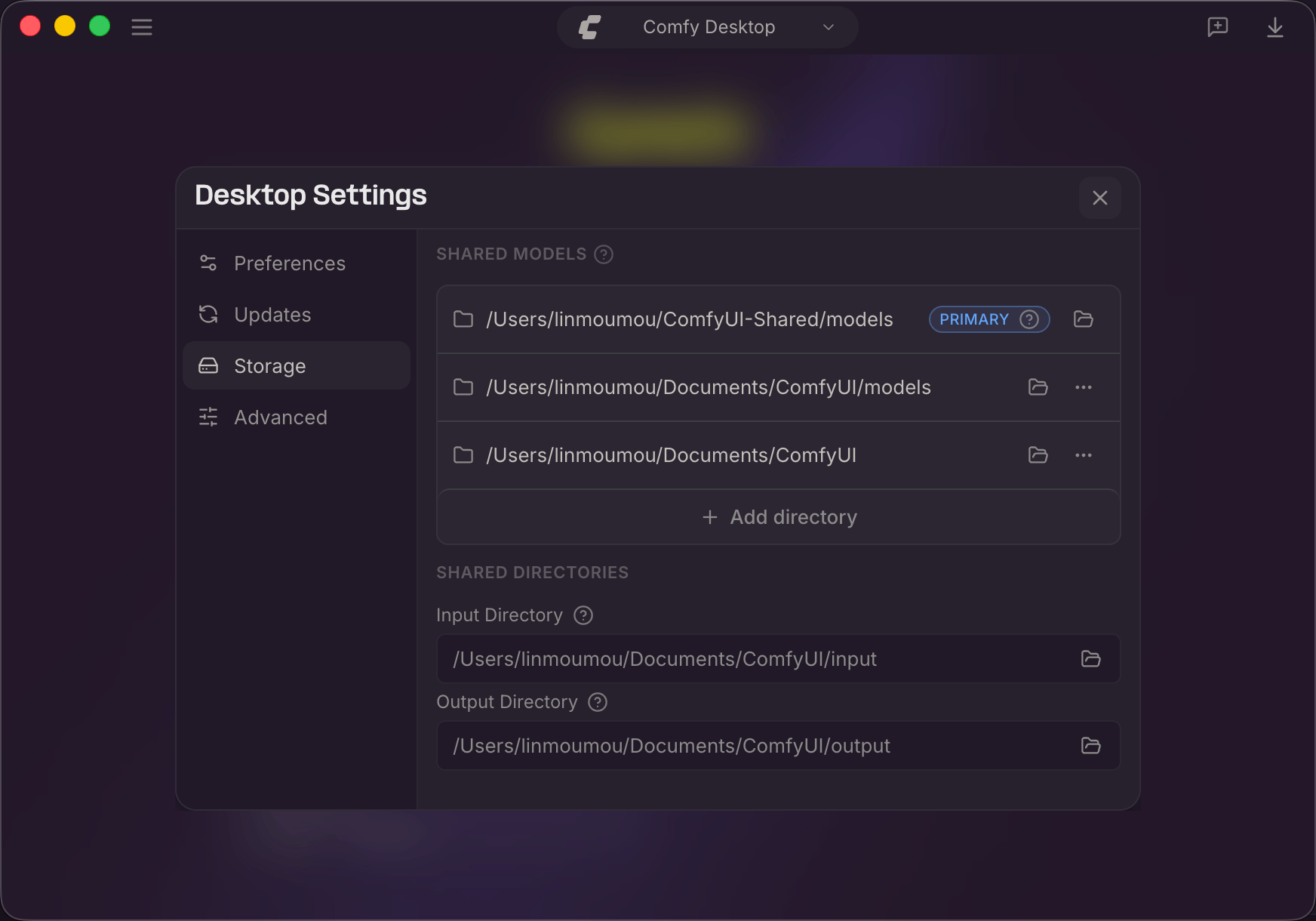
-
Shared Models: Each directory listed here is scanned for models by every instance. The directory marked Primary is where new models are saved by default.
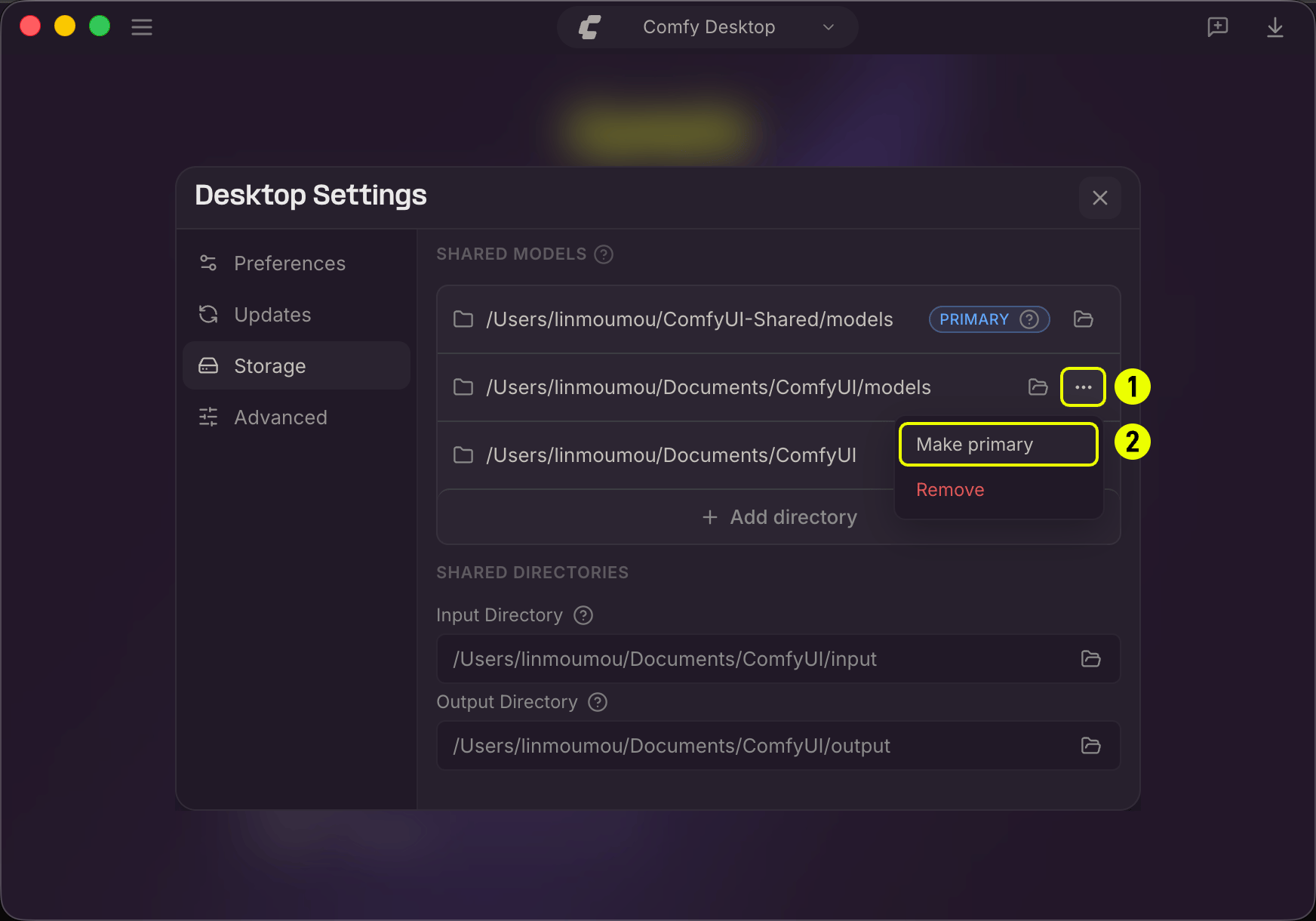
- Click the folder icon to open a directory in your file manager.
- Click the … menu (1) on a directory, then select Make primary (2) to change which directory new models save to.
- Click + Add Shared Directory to add more model directories.
- Shared Input: A shared path where all instances look for input files (images, videos, etc.).
- Shared Output: A shared path where all instances save generated outputs. Customizing this lets you keep all results in one place.
- Click the folder icon to browse and select a new path. ? tooltips provide additional details.
Advanced
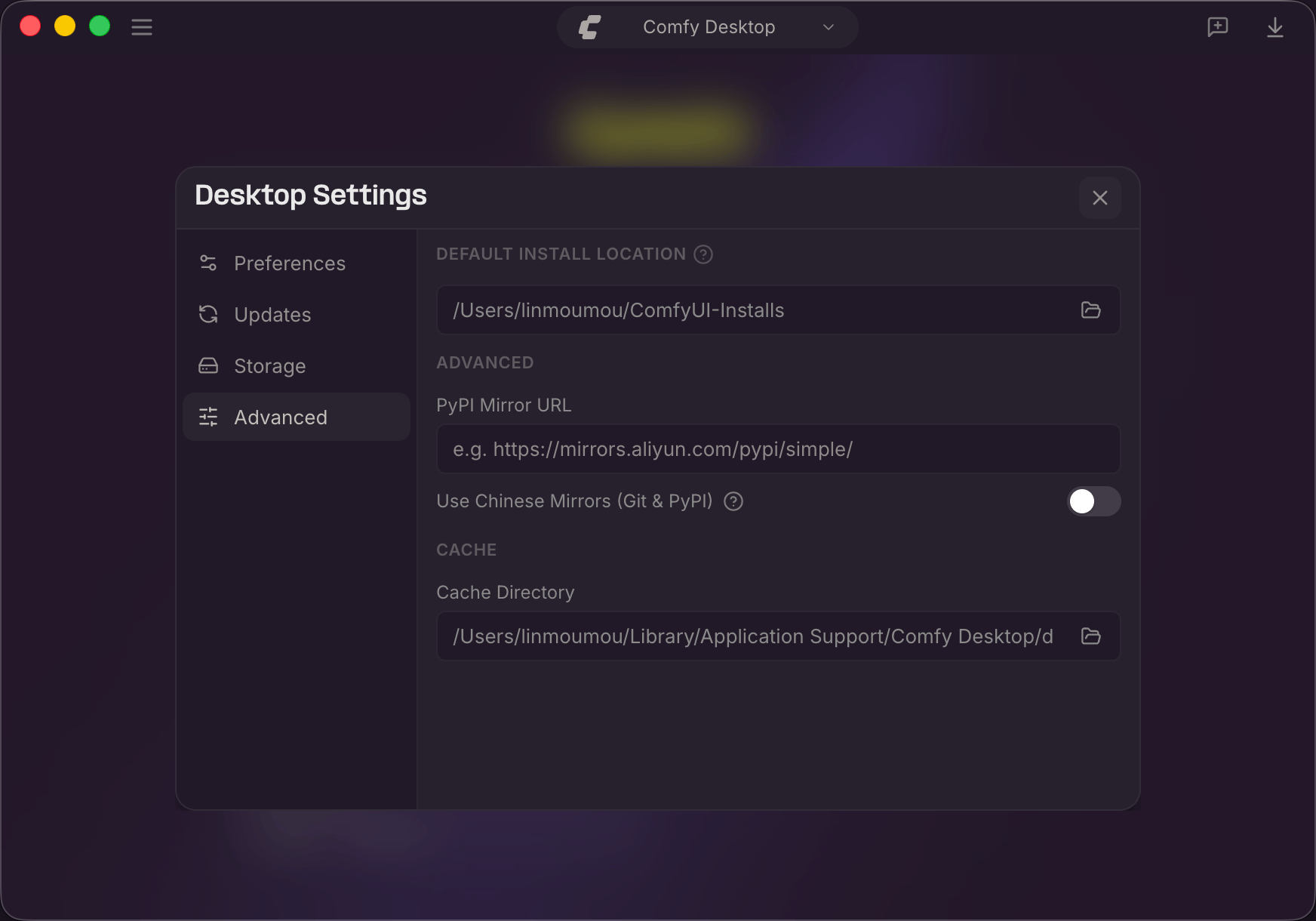
- Default Install Location: Where new standalone instances are created. Click the folder icon to change it.
- Use hardware acceleration: Use the GPU to render Comfy Desktop. Restart Comfy Desktop for changes to take effect.
- PyPI Mirror URL: Custom pip mirror (e.g.
https://mirrors.aliyun.com/pypi/simple/). - Use Chinese Mirrors (Git & PyPI): Use Chinese mirror servers for Git and PyPI. Helpful in mainland China.
- Cache Directory: Where Comfy Desktop stores temporary and cached data. Click the folder icon to change it.
Logs
- Diagnostics: Open logs folder reveals the Desktop app log directory (
app.log). See How do I check Comfy Desktop startup logs?.
Data Locations
Comfy Desktop stores data in platform-specific directories.- Windows
- macOS
- Linux
%LOCALAPPDATA%\Comfy-Desktop. If you already had ComfyUI-Installs or ComfyUI-Shared in your user profile before upgrading, those home-root folders are kept. If you installed the app to another drive, large data lives in <drive>\Comfy-Desktop\ instead.Keyboard Shortcuts
Feedback and Issues
Found a bug or have a suggestion? Comfy Desktop is open source. You can report issues and check planned features here:- Comfy Desktop issues: github.com/Comfy-Org/Comfy-Desktop/issues
- Documentation issues: github.com/Comfy-Org/docs/issues