> ## Documentation Index
> Fetch the complete documentation index at: https://dripart-docs-comfy-router-docs.mintlify.site/llms.txt
> Use this file to discover all available pages before exploring further.
# Managing Installations
> Launch, update, snapshot, and manage your ComfyUI installations
## The Manage Panel
The Manage panel content varies by instance type. The screenshots on this page show a **local standalone installation**. Cloud and remote instances have fewer tabs and settings.
Select **Manage** on an installation to open the settings panel.
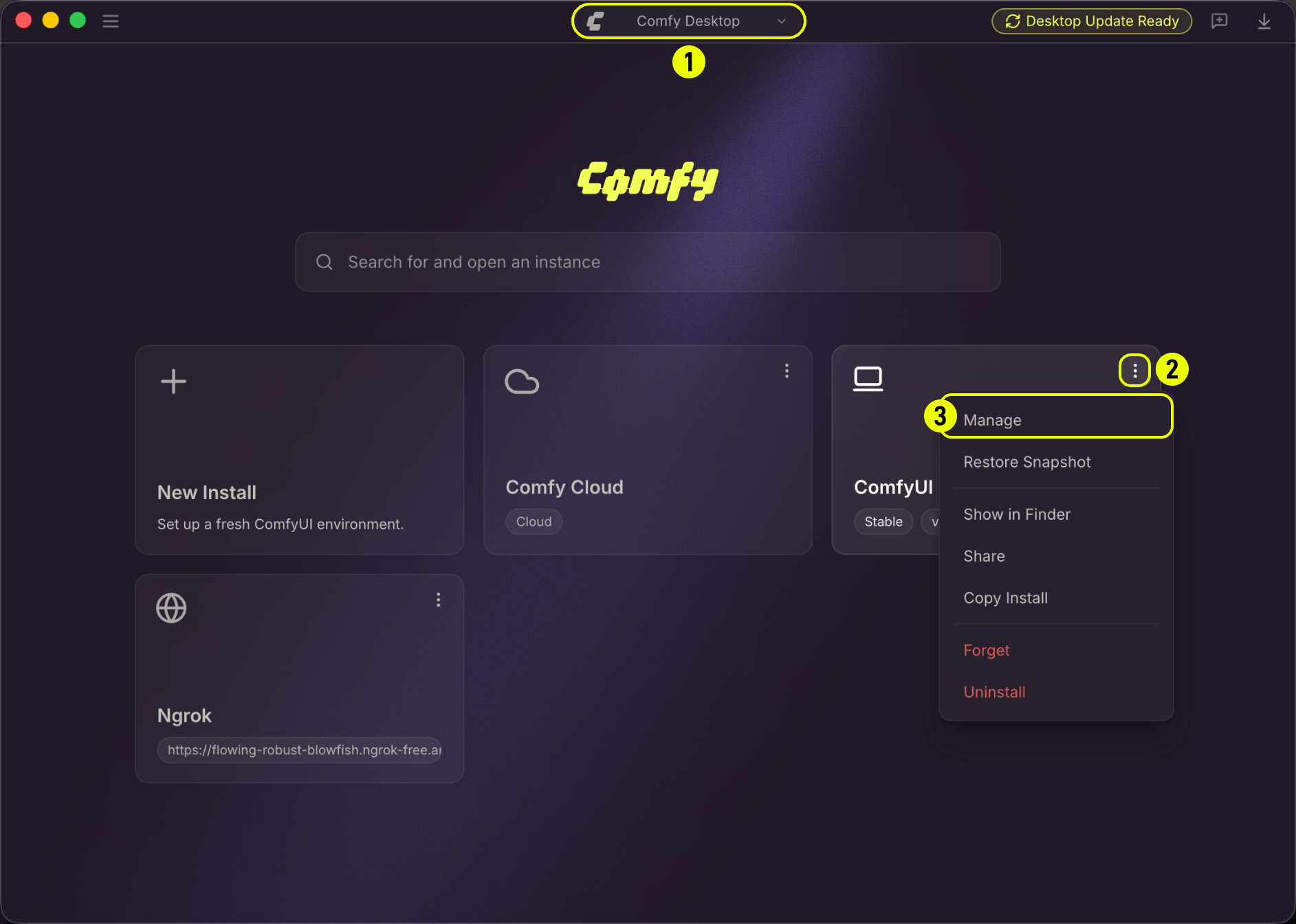 * Open the **Chooser** view (the home screen showing all your instances)
* Click the ⋮ icon on an instance card
* Select **Manage** from the context menu
The panel has six tabs:
### Update Tab
* Open the **Chooser** view (the home screen showing all your instances)
* Click the ⋮ icon on an instance card
* Select **Manage** from the context menu
The panel has six tabs:
### Update Tab
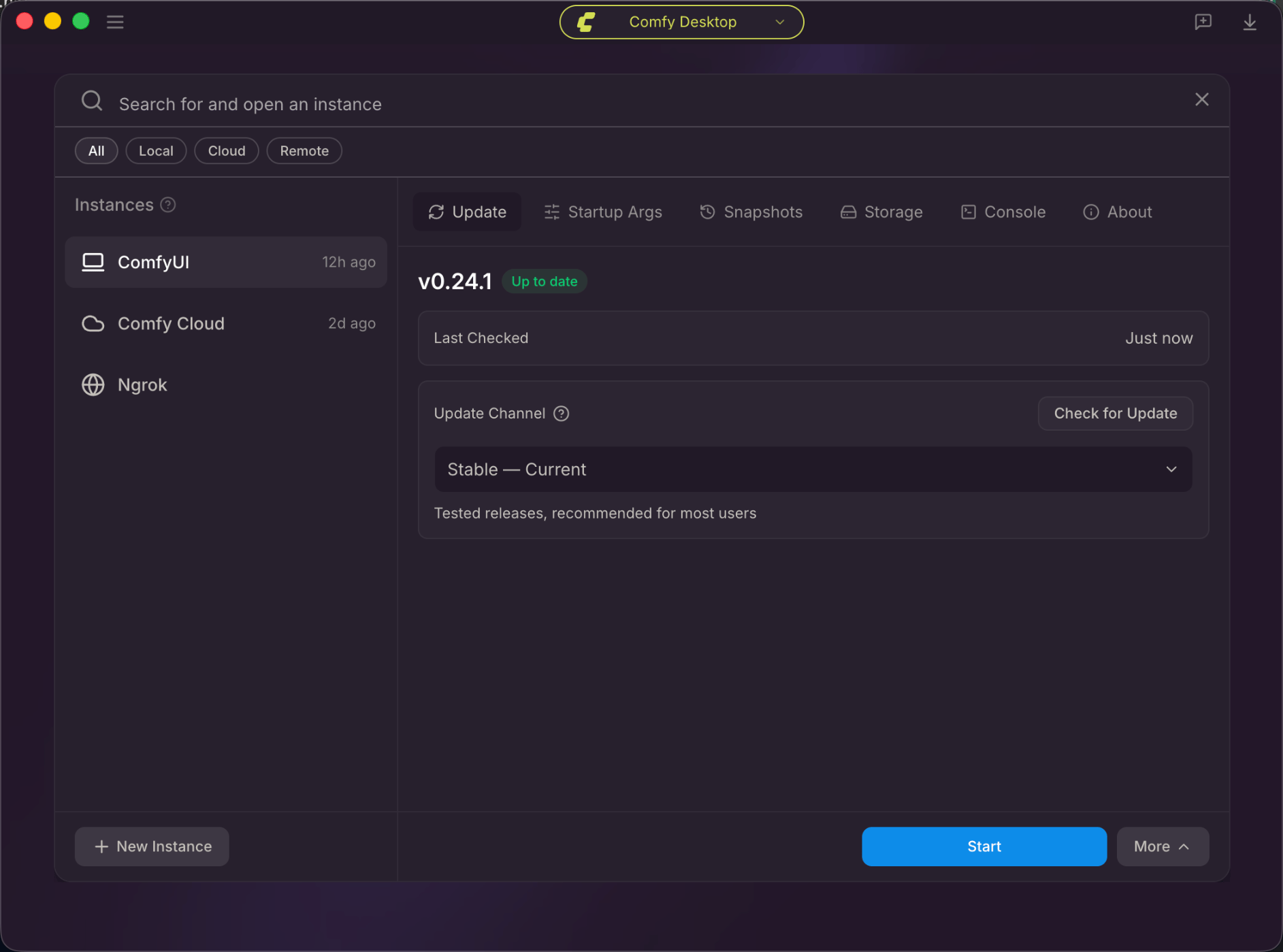 This tab shows the current version, lets you check for updates, and configure the update channel.
* **Version**: Shows the current installed version and whether it's up to date.
* **Last checked**: Displays when updates were last checked.
* **Check for update**: Manually check for a new version.
* **Update Channel**: Choose the update channel from the dropdown:
* **Stable**: Tested releases, recommended for most users. Default option.
* **Latest on GitHub**: Newest commits from the master branch.
### Startup Args Tab
This tab shows the current version, lets you check for updates, and configure the update channel.
* **Version**: Shows the current installed version and whether it's up to date.
* **Last checked**: Displays when updates were last checked.
* **Check for update**: Manually check for a new version.
* **Update Channel**: Choose the update channel from the dropdown:
* **Stable**: Tested releases, recommended for most users. Default option.
* **Latest on GitHub**: Newest commits from the master branch.
### Startup Args Tab
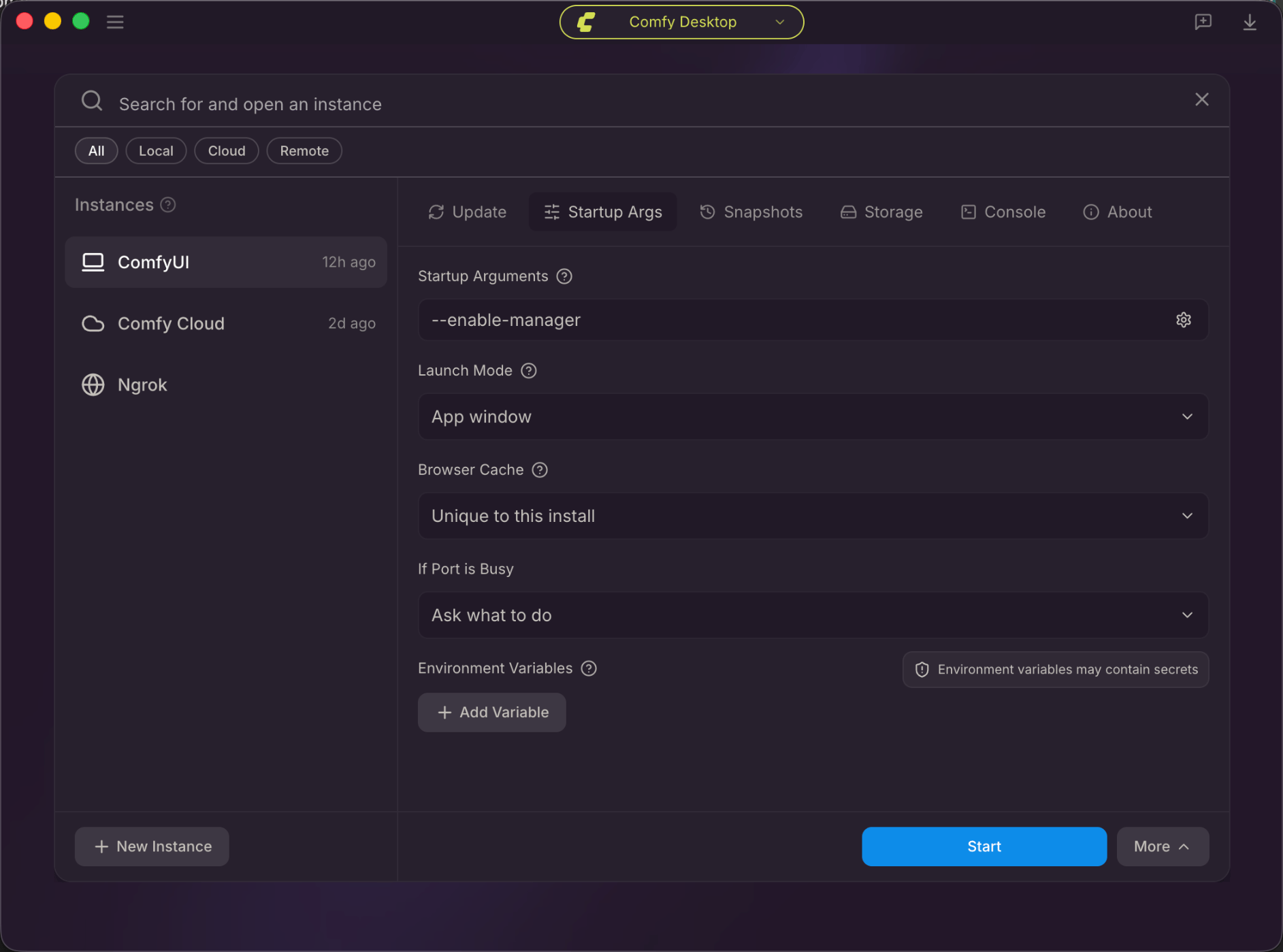 Configure startup CLI arguments, Manager policy, launch mode, browser cache sharing, port conflict behavior, and environment variables.
* **Startup Arguments**: Custom CLI arguments for ComfyUI (e.g. `--listen`). Click the gear icon for categorized flags.
* **Manager Security Level**: Controls which node packs ComfyUI-Manager can install for this instance. Applies the next time you launch.
* **Strict**: Blocks all node pack installs, updates, and uninstalls. Manager is read-only.
* **Standard (recommended)**: Allows registered node packs. Blocks installs from unregistered sources (for example arbitrary git URLs).
* **Relaxed**: Like Standard, but also allows unregistered-source installs while ComfyUI is only reachable from this machine. `--listen` blocks them again.
* **Permissive**: Allows every risk tier. If ComfyUI is exposed with `--listen`, installs still require **Personal cloud** network mode.
* **Manager Network Mode**: How Manager talks to the node registry.
* **Public (default)**: Uses the public registry. `--listen` blocks node pack installs at every security level.
* **Private**: Uses a private node database you configure yourself.
* **Offline**: No external network. Downloads are unavailable.
* **Personal cloud**: Treats this machine as a trusted remote box and lifts the `--listen` install block. The chosen security level still applies. Only use this on a machine you control.
* **Launch Mode**: **App window** (embedded) or **Console only** (no app window; ComfyUI runs as a console process).
* **Browser Cache**: **Unique to this instance** or **Shared**.
* **If Port is Busy**: **Ask what to do**, or **Use next available port (asks if --port is set)**.
* **Environment Variables**: Add custom environment variables with the **+ Add Variable** button.
See the full list of ComfyUI startup flags available for Startup Arguments.
### Snapshots Tab
Configure startup CLI arguments, Manager policy, launch mode, browser cache sharing, port conflict behavior, and environment variables.
* **Startup Arguments**: Custom CLI arguments for ComfyUI (e.g. `--listen`). Click the gear icon for categorized flags.
* **Manager Security Level**: Controls which node packs ComfyUI-Manager can install for this instance. Applies the next time you launch.
* **Strict**: Blocks all node pack installs, updates, and uninstalls. Manager is read-only.
* **Standard (recommended)**: Allows registered node packs. Blocks installs from unregistered sources (for example arbitrary git URLs).
* **Relaxed**: Like Standard, but also allows unregistered-source installs while ComfyUI is only reachable from this machine. `--listen` blocks them again.
* **Permissive**: Allows every risk tier. If ComfyUI is exposed with `--listen`, installs still require **Personal cloud** network mode.
* **Manager Network Mode**: How Manager talks to the node registry.
* **Public (default)**: Uses the public registry. `--listen` blocks node pack installs at every security level.
* **Private**: Uses a private node database you configure yourself.
* **Offline**: No external network. Downloads are unavailable.
* **Personal cloud**: Treats this machine as a trusted remote box and lifts the `--listen` install block. The chosen security level still applies. Only use this on a machine you control.
* **Launch Mode**: **App window** (embedded) or **Console only** (no app window; ComfyUI runs as a console process).
* **Browser Cache**: **Unique to this instance** or **Shared**.
* **If Port is Busy**: **Ask what to do**, or **Use next available port (asks if --port is set)**.
* **Environment Variables**: Add custom environment variables with the **+ Add Variable** button.
See the full list of ComfyUI startup flags available for Startup Arguments.
### Snapshots Tab
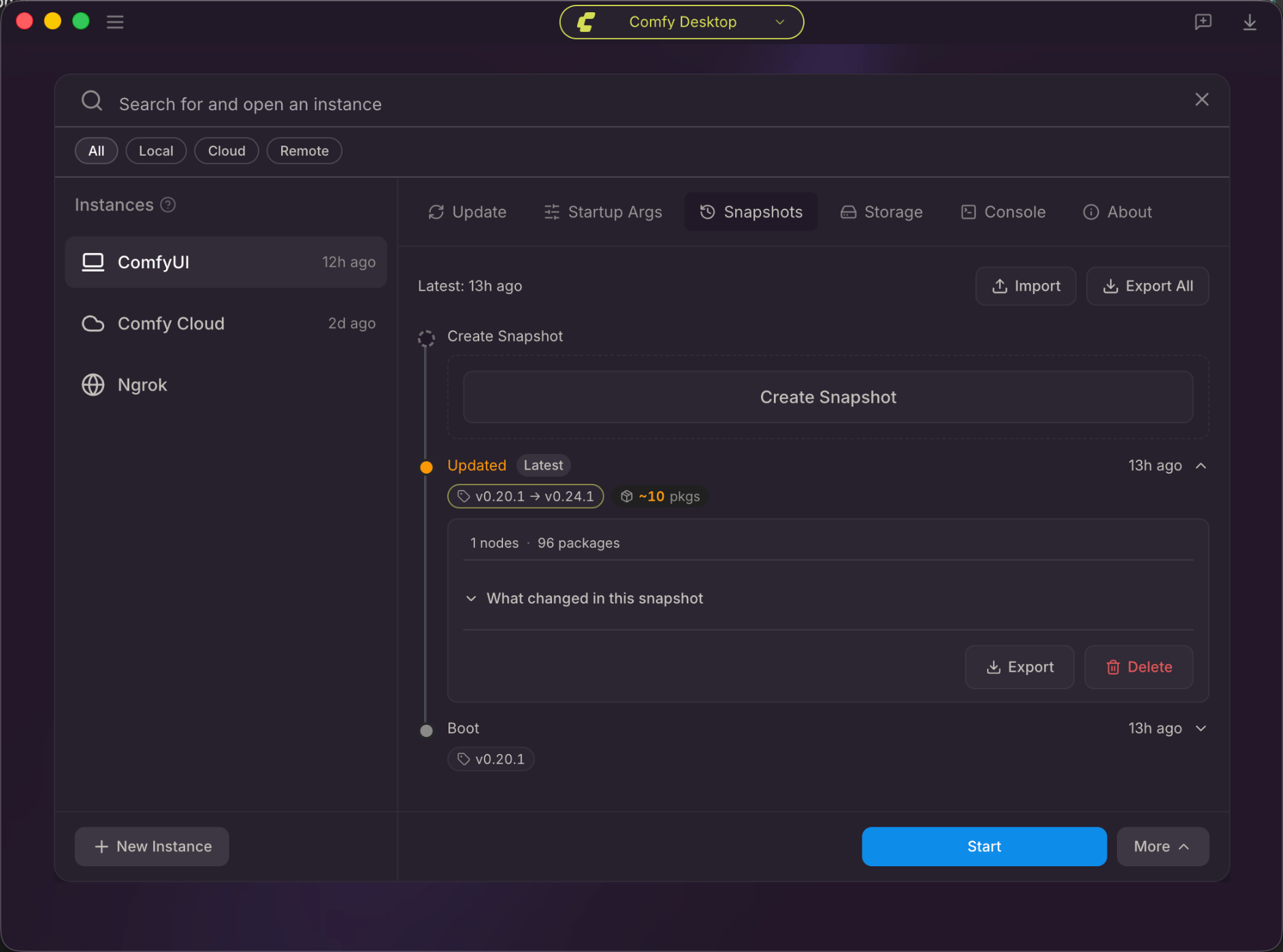 View, import, export, and create snapshots. Each entry shows version changes and package statistics.
* **Timeline**: Lists all snapshots chronologically with version changes and stats.
* **Latest**: Shows when the most recent snapshot was taken.
* **Import**: Import a snapshot from a file.
* **Export All**: Export all snapshots as a backup.
* **Create Snapshot**: Manually create a new snapshot at any time.
* Each snapshot entry shows:
* Version change (e.g. `v0.20.1 → v0.24.1`)
* Package changes
* Node and package counts
* **Export** and **Delete** buttons
Learn about automatic snapshots, comparison, and full snapshot management.
### Storage Tab
View, import, export, and create snapshots. Each entry shows version changes and package statistics.
* **Timeline**: Lists all snapshots chronologically with version changes and stats.
* **Latest**: Shows when the most recent snapshot was taken.
* **Import**: Import a snapshot from a file.
* **Export All**: Export all snapshots as a backup.
* **Create Snapshot**: Manually create a new snapshot at any time.
* Each snapshot entry shows:
* Version change (e.g. `v0.20.1 → v0.24.1`)
* Package changes
* Node and package counts
* **Export** and **Delete** buttons
Learn about automatic snapshots, comparison, and full snapshot management.
### Storage Tab
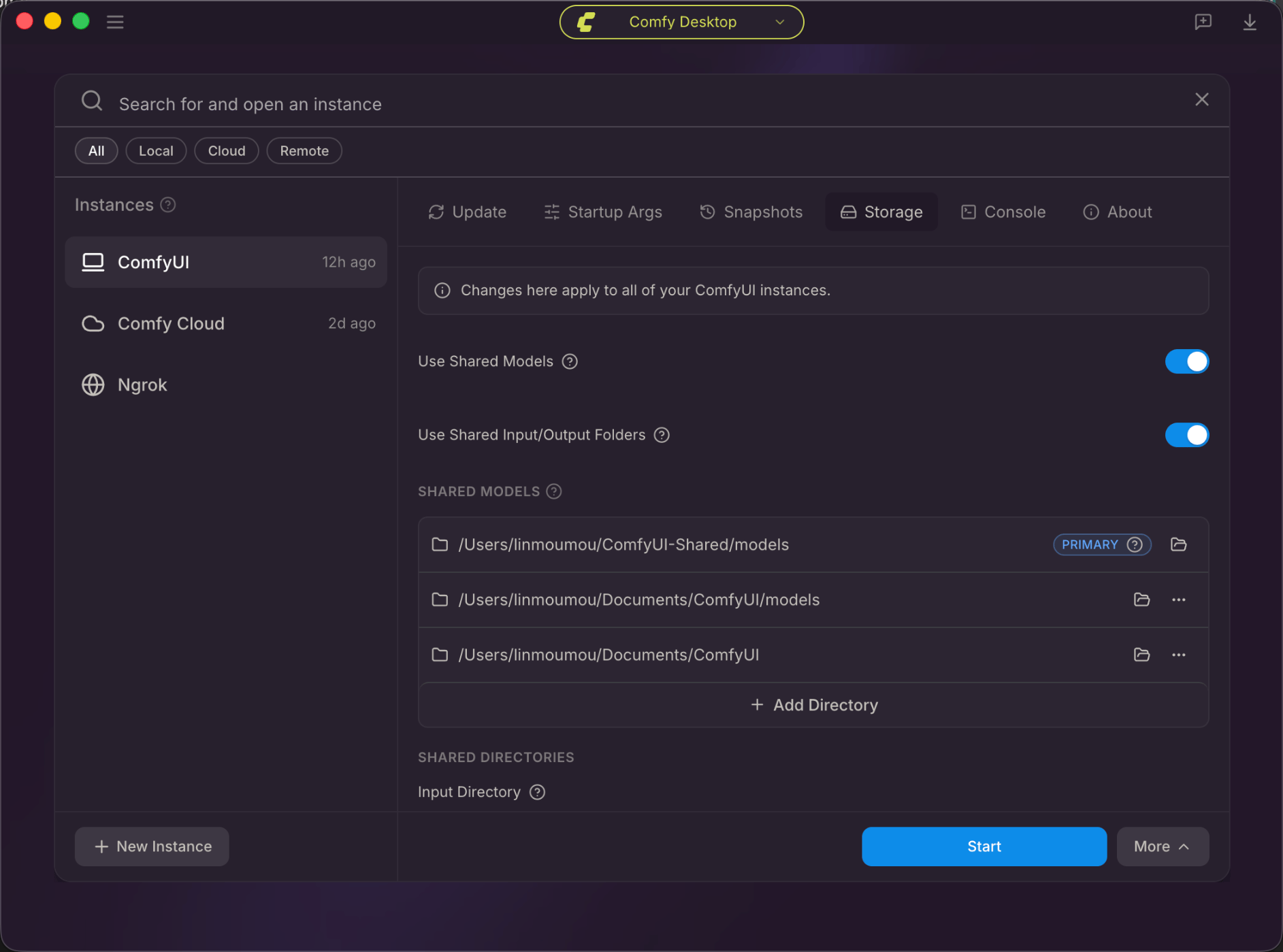 Configure whether this instance uses the global shared folders, and add extra model directories that apply only to this instance.
* **Include Shared Directories**: Toggle whether this instance scans the global shared model directories from [Desktop Settings → Storage](/installation/desktop/usage/settings#storage).
* **Use Shared Input Folder**: When enabled, this instance reads input files from the global shared input folder. Disable to use this instance's own input folder.
* **Use Shared Output Folder**: When enabled, this instance writes generated outputs to the global shared output folder. Disable to use this instance's own output folder.
* **Model Directories**: Extra model directories for this instance only, searched in addition to the shared model directories.
* **Input Directory** / **Output Directory**: This instance's own folders when the shared toggles above are off.
### Terminal Tab
Configure whether this instance uses the global shared folders, and add extra model directories that apply only to this instance.
* **Include Shared Directories**: Toggle whether this instance scans the global shared model directories from [Desktop Settings → Storage](/installation/desktop/usage/settings#storage).
* **Use Shared Input Folder**: When enabled, this instance reads input files from the global shared input folder. Disable to use this instance's own input folder.
* **Use Shared Output Folder**: When enabled, this instance writes generated outputs to the global shared output folder. Disable to use this instance's own output folder.
* **Model Directories**: Extra model directories for this instance only, searched in addition to the shared model directories.
* **Input Directory** / **Output Directory**: This instance's own folders when the shared toggles above are off.
### Terminal Tab
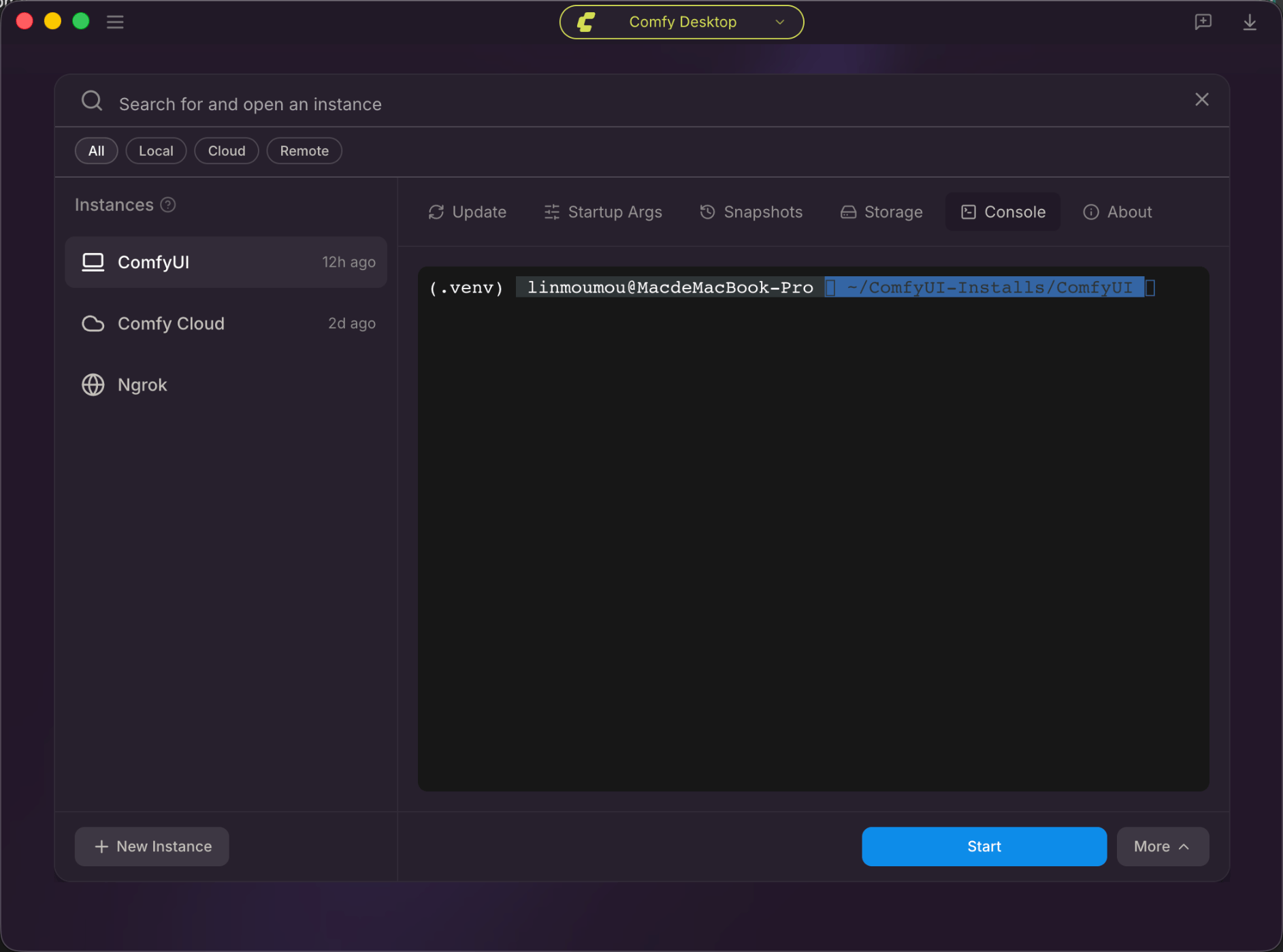 An interactive shell in this instance's folder. It works whether ComfyUI is running or stopped.
* Use it to inspect startup logs, errors, and Python output.
* Copy, paste, and select-all follow OS shortcuts. Right-click the terminal for the same actions.
### About Tab
An interactive shell in this instance's folder. It works whether ComfyUI is running or stopped.
* Use it to inspect startup logs, errors, and Python output.
* Copy, paste, and select-all follow OS shortcuts. Right-click the terminal for the same actions.
### About Tab
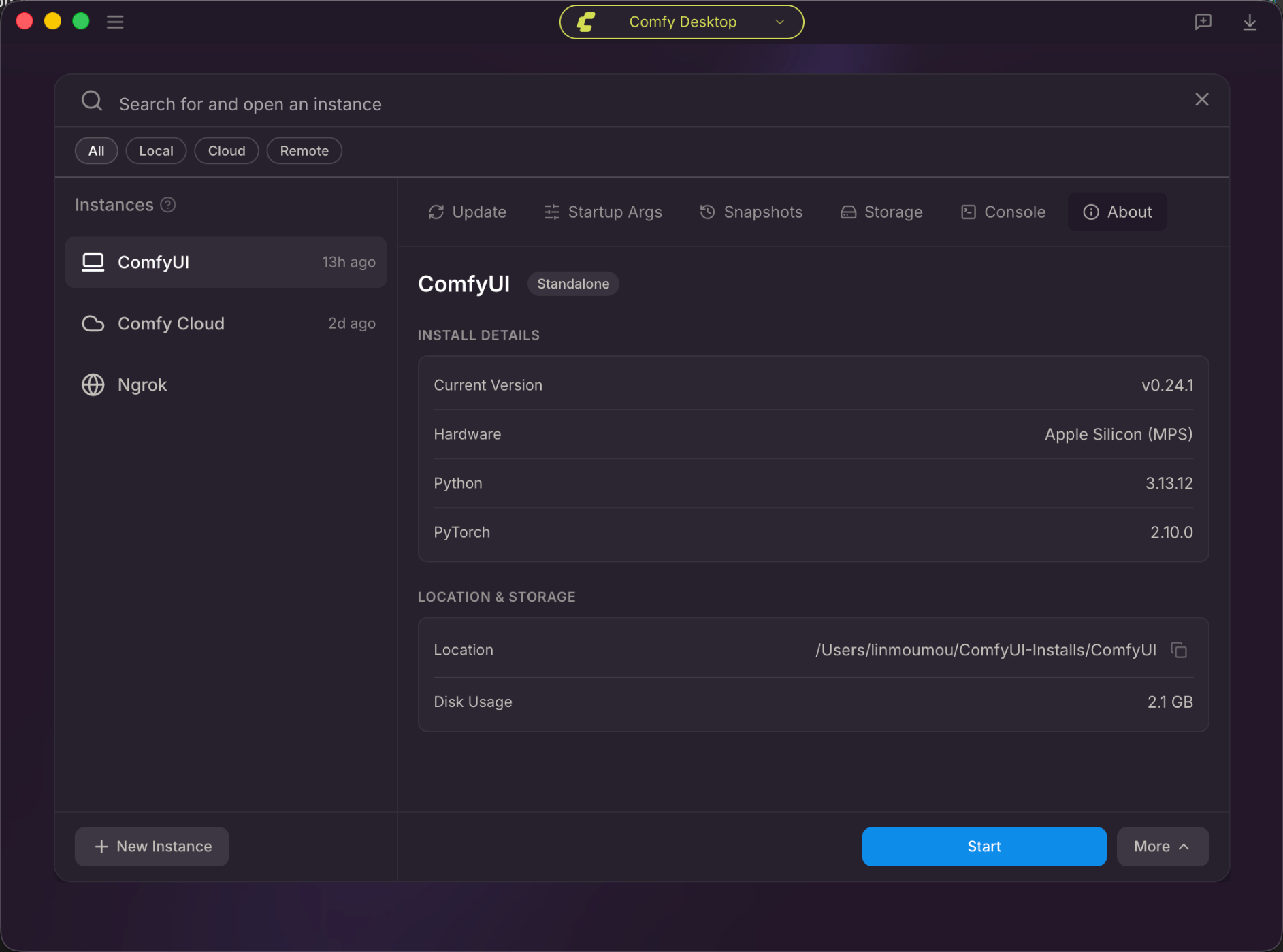 View installation details: ComfyUI version, hardware, Python and PyTorch versions, disk path, and usage.
* **Current Version**: The installed ComfyUI version.
* **Hardware**: Detected hardware (e.g. `Apple Silicon (MPS)`).
* **Python**: Bundled Python version.
* **PyTorch**: The installed PyTorch build. **Change PyTorch** switches to an official stack tested with this install type (CUDA, ROCm, Intel XPU, CPU, or Apple MPS). The rest of the environment is kept. Nightly builds are marked unstable.
* **Location**: The full installation path on disk. Click the copy button to copy it.
* **Disk Usage**: How much disk space the installation uses.
## Installation Actions
Right-click an installation card (or click the ⋮ icon) to access actions. See the [Instance Management](/installation/desktop/usage/instance-management) page for a full list of actions.
View installation details: ComfyUI version, hardware, Python and PyTorch versions, disk path, and usage.
* **Current Version**: The installed ComfyUI version.
* **Hardware**: Detected hardware (e.g. `Apple Silicon (MPS)`).
* **Python**: Bundled Python version.
* **PyTorch**: The installed PyTorch build. **Change PyTorch** switches to an official stack tested with this install type (CUDA, ROCm, Intel XPU, CPU, or Apple MPS). The rest of the environment is kept. Nightly builds are marked unstable.
* **Location**: The full installation path on disk. Click the copy button to copy it.
* **Disk Usage**: How much disk space the installation uses.
## Installation Actions
Right-click an installation card (or click the ⋮ icon) to access actions. See the [Instance Management](/installation/desktop/usage/instance-management) page for a full list of actions.